

If you prefer the PDF version of this guide : download
Assuming that everything is set up and ready to go with your solution. There are 4 steps!
In this example we use Lightspeed – but this may apply to other systems.
- My List of Apps
- Purchase Licences
- Navigate through the Lightspeed Hierarchy
- Deploy Apps to the iPad
With this method, if an app is compatible with iOS9+ Device assignment then there will be no need to have an Apple ID on the device. This is a god send for managing masses of shared devices, or even making it easier to assign apps to any institutionally owned devices.
We use a utility created for the community to assist with the deployment. Create a free account on mylistofapps.com
The reason we use this utility is because ;
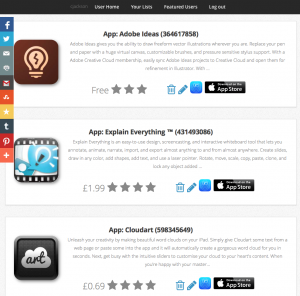
- A list of Apps can be created (by an admin or teacher that can later be added into the system)
- The list links directly to the VPP easing the purchase of licences
- The list will confirm if apps are compatible with ‘Device Assignment’
- The list clearly states the App ID Number, which is used in the App Deployment step.
- Also a major benefit is that if you are supplied the list in this format, there is no mistake what App the school has asked for as there are sometimes many versions at different cost for some apps.
- Lastly, you will get a cost estimate of all the apps you want to deploy.
Also at this time, In-App Purchases are not compatible with the VPP programme. So where possible buy apps that are fully functional. An example would be an app called ‘Puppet Pals’ where a free version exists (this may suit the school) and to upgrade the app you need to make in-app purchase which is incompatible with VPP. However the developer also provides a paid app which is fully functional bypassing the need for in-app purchase.
Also you will not be able to deploy App Bundles which are created for normal consumers to save money, educational users will usually get a 50% saving on each app (purchases of 20+).
Step 1 : My List of Apps
My list of Apps is FREE and easy to use. It doesn’t need much explaining!
Go to mylistofapps.com
- Creating an account is free
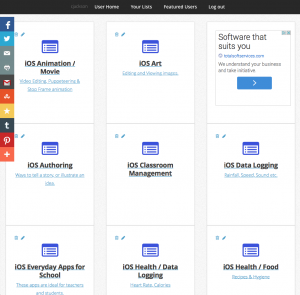
- You can create as many lists as you need to.
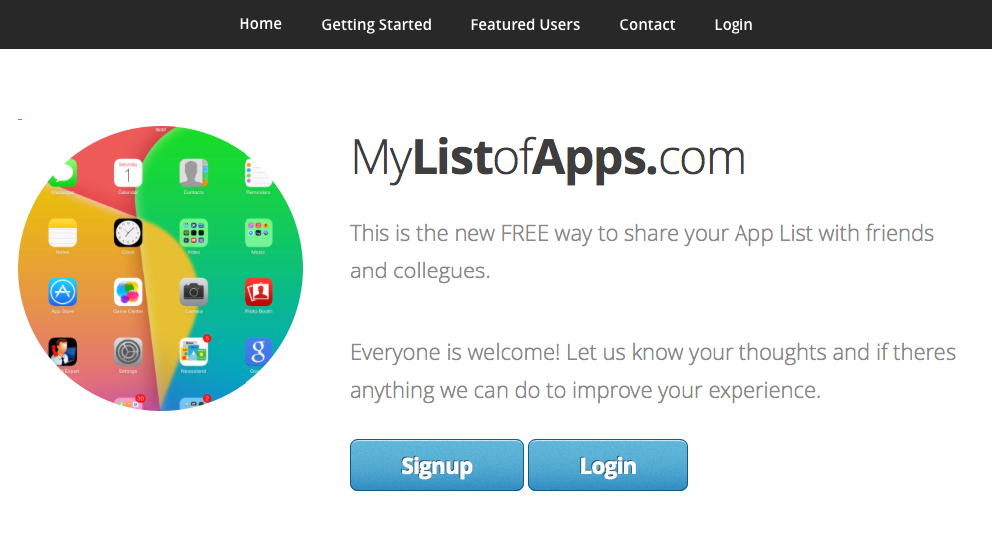
If you want you can even embed the lists on your website – this could be useful for communicating apps with your parents / peers.
You can make lists of:
- iPad Apps
- Mac Apps
- Ebooks
Step 2 : Purchase Licences
Now that you have your List of Apps we can start making purchases of licences (this applies to Free apps also).
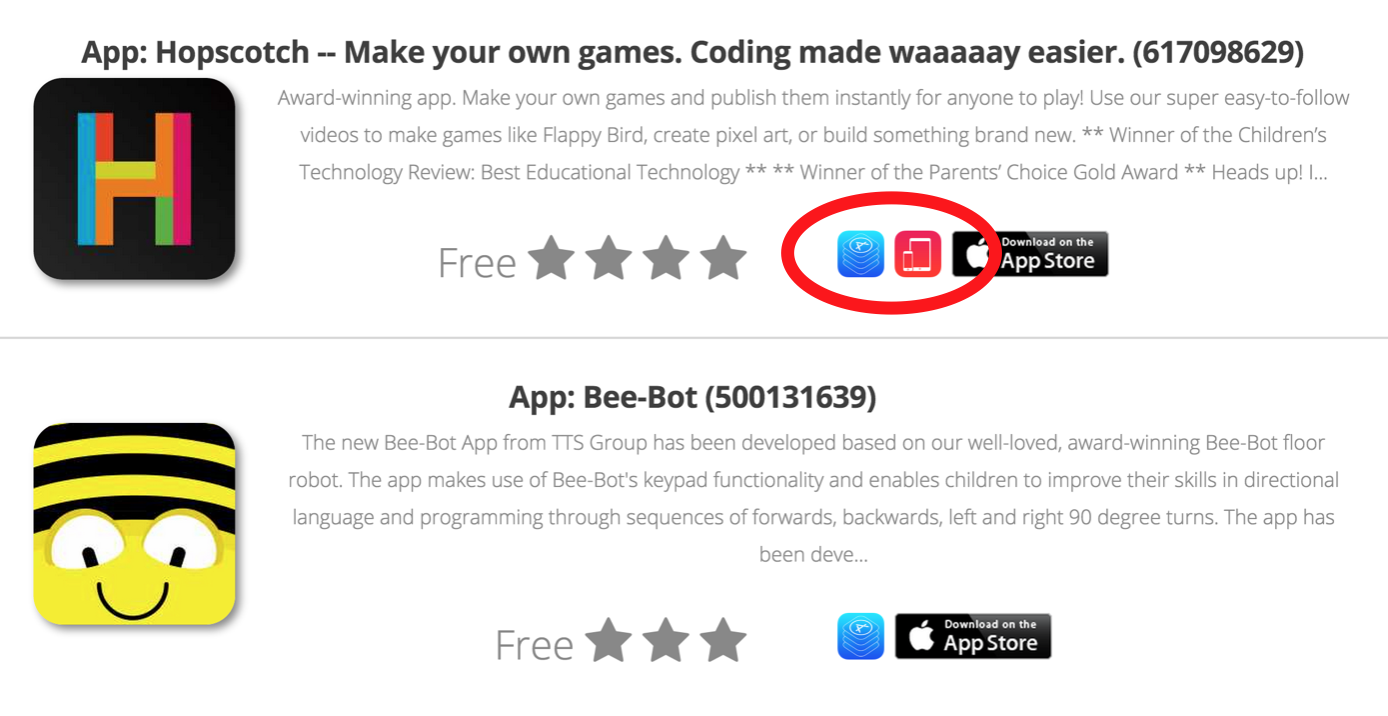
Note the following symbols:
 Volume App Symbol. This will link us directly to the purchase page in the VPP where we can obtain licences.
 Device Assignable – This means the app is compatible with iOS9+ / OSX 10.11+ (Apple ID -less deployment)
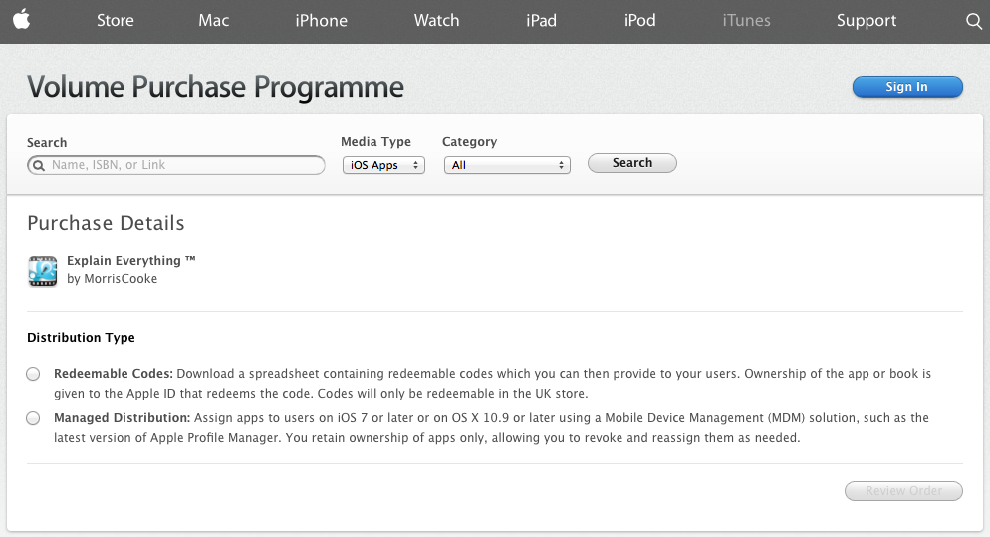
There are two very different ‘Distribution Types’. It is important to select ‘Managed Distribution’ for the type of deployment we are doing in this example.
Continue to make the purchase – make sure you are signed in with your supplied VPP account.
You will need a credit card, alternatively you can get VPP credit from us.
Step 3 : Navigate through Lightspeed Hierarchy
Now that you have made your purchases – check they all show up as Managed Licenses in your VPP account.

Now you can log into your Lightspeed Account.
You will need to navigate to the group you with to deploy the apps. If you need to you could deploy apps at the School Level, or All Students groups, or select subgroups such as SET1, SET2.


Step 4 : Deploy Apps
- Select Apps from the main side menu.
- Select ‘Install App’ button
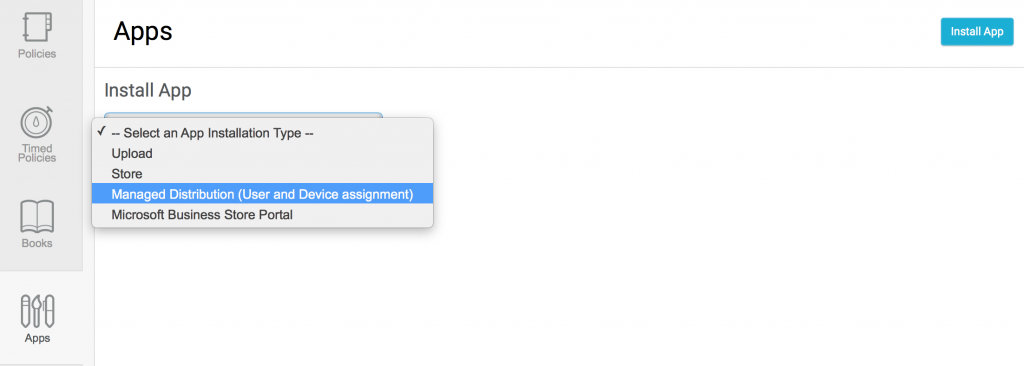
- Then change the installation type to ‘Managed Distribution’
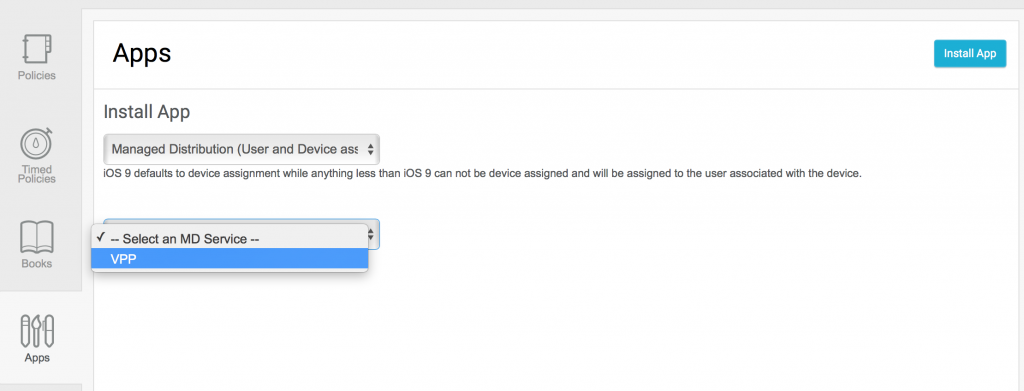
- Now select the ‘Managed Distribution Service’ – the wording may vary depending on what the admin named the service as.
- Now select the install button for apps you want to install to this group

Known Issues
If you are deploying apps (or rather their licenses) for that are stock installed such as Pages, Keynote, Numbers, Garageband, iMovie – then you will have to select the app in Lightspeed and Forece App Management.

Feedback
If you have any feedback for instructors or engineers, on improving resources or the service you receive please visit: icthero.co.uk/feedback
Getting in touch
You can reach me at:
If you need a site visit or support please get in touch.
Check out mylistofapps.com for sharing apps with other teachers and students.
Follow me on Twitter @cjacksonuk