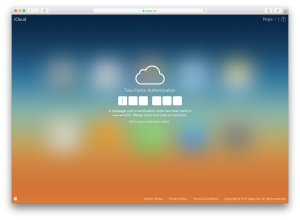
* UPDATE : It looks like the day after this post was published, Apple made it a whole lot easier. Now you can head over to appleid.apple.com and make changes to your account just like a regular user.
…or at least this applies to the school manager account – managed users created by the admin can be modified in ASM as normal.
If you have migrated to Apple School Manager (ASM), changing passwords and 2-Factor codes is not as easy as it once was since you cannot visit appleid.apple.com like regular users.
This guide will help you:
- Log into iCloud if your ASM/Managed Apple ID is restricting you
- Change Password
- Change Mobile Number / 2-Factor
ASM accounts are managed, and thus some of the processes are different. In order to change these account details you need an iPad or Mac.
Here is a recommended workflow for Mac.
- Create a new user account on a mac – one you are happy to delete at the end of process.
- Once logged in as the new user you will be prompted with setup screens. There is no need to fill out anything at this point.
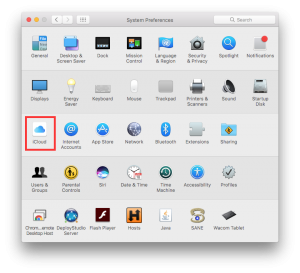
- Go to ‘System Preferences’ and select ‘iCloud’
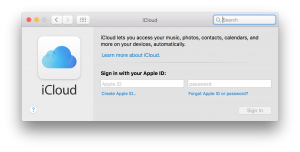
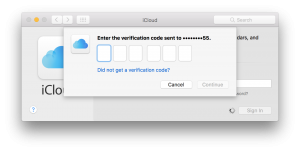
- Since its the first time signing in you will be asked for credentials – sign in with your ASM account
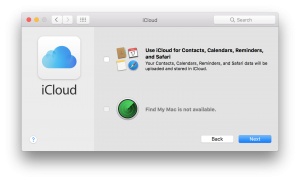
- There is no need to activate any services:

- Select ‘Account Details’
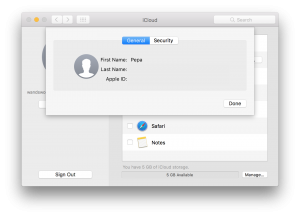
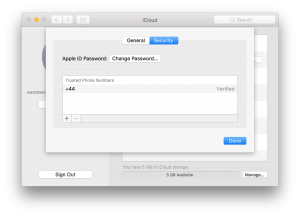
- Select ‘Security’ where you will be able to change password and phone number.
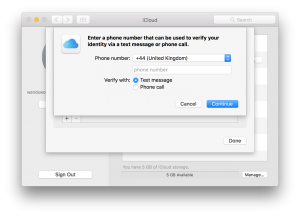
- And you can also log into icloud.com now!